> For the complete documentation index, see [llms.txt](https://www.pranaypourkar.co.in/the-programmers-guide/llms.txt). Markdown versions of documentation pages are available by appending `.md` to page URLs; this page is available as [Markdown](https://www.pranaypourkar.co.in/the-programmers-guide/java/java-development-tools/sonarqube/scanning-a-spring-boot-project.md).
# Scanning a Spring Boot Project
## About
This section explains **how a Spring Boot project is actually scanned by SonarQube**, what SonarQube expects from the build, and how analysis results flow into the dashboard and Quality Gates.
Before scanning, the following must already be true:
* Spring Boot project builds successfully
* Java version supported by SonarQube
* Tests can run (even if minimal)
* SonarQube server is reachable
* Authentication token is available
SonarQube **assumes a healthy build**.\
If the build is broken, analysis quality is undefined.
### How SonarQube Fits into the Spring Boot Build ?
SonarQube analysis runs **after compilation**, not before.
Typical Spring Boot flow:
```
Source Code
↓
mvn compile
↓
mvn test (JaCoCo generates coverage)
↓
sonar:sonar
↓
SonarQube Dashboard + Quality Gate
```
SonarQube does **not**:
* Start Spring context
* Load application properties
* Execute controllers or services
It analyzes **code artifacts**, not runtime behavior.
## Option 1: Local SonarQube Using Docker + Maven Sonar Plugin
*(Most common for learning, PoC, and early team setup)*
This option is ideal when:
* You want a self-contained setup
* You are evaluating SonarQube
* You want to scan locally before CI integration
* You want zero infrastructure dependency
This mirrors production behavior without CI complexity.
{% hint style="warning" %}
* SonarQube runs as a Docker container
* Database runs as a Docker container
* Spring Boot project runs locally
* Maven triggers analysis using the Sonar plugin
{% endhint %}
### Step-wise Process
#### Step 1: Run SonarQube Using Docker
A minimal Docker setup consists of:
* SonarQube server
* PostgreSQL database
* Persistent volumes
Typical responsibilities:
* Docker handles runtime
* SonarQube handles analysis & UI
* PostgreSQL stores history and metrics
This setup is **stateful** and should not be recreated every run.
#### Step 2: Access SonarQube UI
Once started:
* SonarQube UI is available on `http://localhost:9000`
* Default admin credentials are used initially
* A project key and token are generated
At this point, SonarQube is **ready to receive analysis reports**, but nothing has been scanned yet.
#### Step 3: Configure Spring Boot Project for Analysis
The Spring Boot project must:
* Compile successfully
* Produce bytecode
* Produce test and coverage reports
This is **non-negotiable for Java analysis**.
SonarQube does not analyze:
* Uncompiled code effectively
* Runtime behavior
* Spring context wiring
#### Step 4: Use Maven Sonar Plugin to Trigger Scan
The **Maven Sonar plugin** acts as the bridge between:
* Your build
* SonarQube server
Key characteristics:
* Runs after compilation and tests
* Collects source + bytecode + reports
* Uploads analysis results to SonarQube
Typical flow:
```
mvn clean verify
mvn sonar:sonar
```
Or combined:
```
mvn clean verify sonar:sonar
```
This is the **authoritative scan**, identical in behavior to CI scans.
#### Step 5: Authentication and Project Binding
During scan:
* Project key identifies the service
* Token authenticates the scanner
* SonarQube binds results to the project
After completion:
* Issues appear in the UI
* Ratings are calculated
* Quality Gate is evaluated
### Script
{% file src="/files/fChDa3ZbBafw5LGgBOis" %}
{% hint style="info" %}
Script will pull the required docker images and run the Sonar Server. Ensure Docker is already setup.
{% endhint %}
### Example
Use the sample java project having required plugins
{% file src="/files/tD1DTdJjwrkgUzI8RFj1" %}
Execute the Script using the below command as well provide the path of the springboot project
{% code overflow="wrap" %}
```
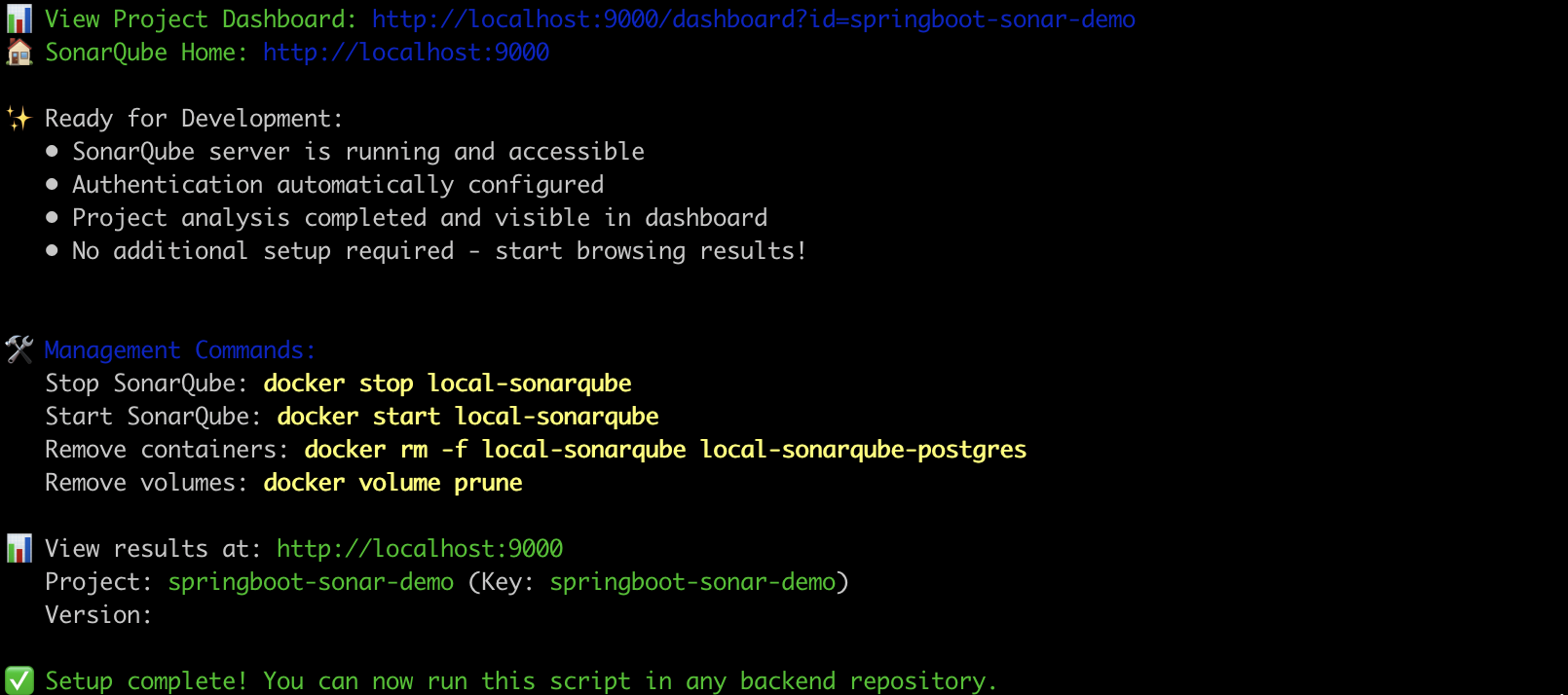
./script-to-run-local-sonar-analysis.sh /Users/pranayp/Documents/Project/codebase/sonar/springboot-sonar-demo
```
{% endcode %}
Open the Sonarqube console at with credential as admin/admin
Once done we can use below command to stop the containers
```
./script-to-run-local-sonar-analysis.sh --clean
```
## Option 2: Local SonarQube Using Docker + Maven Sonar Plugin
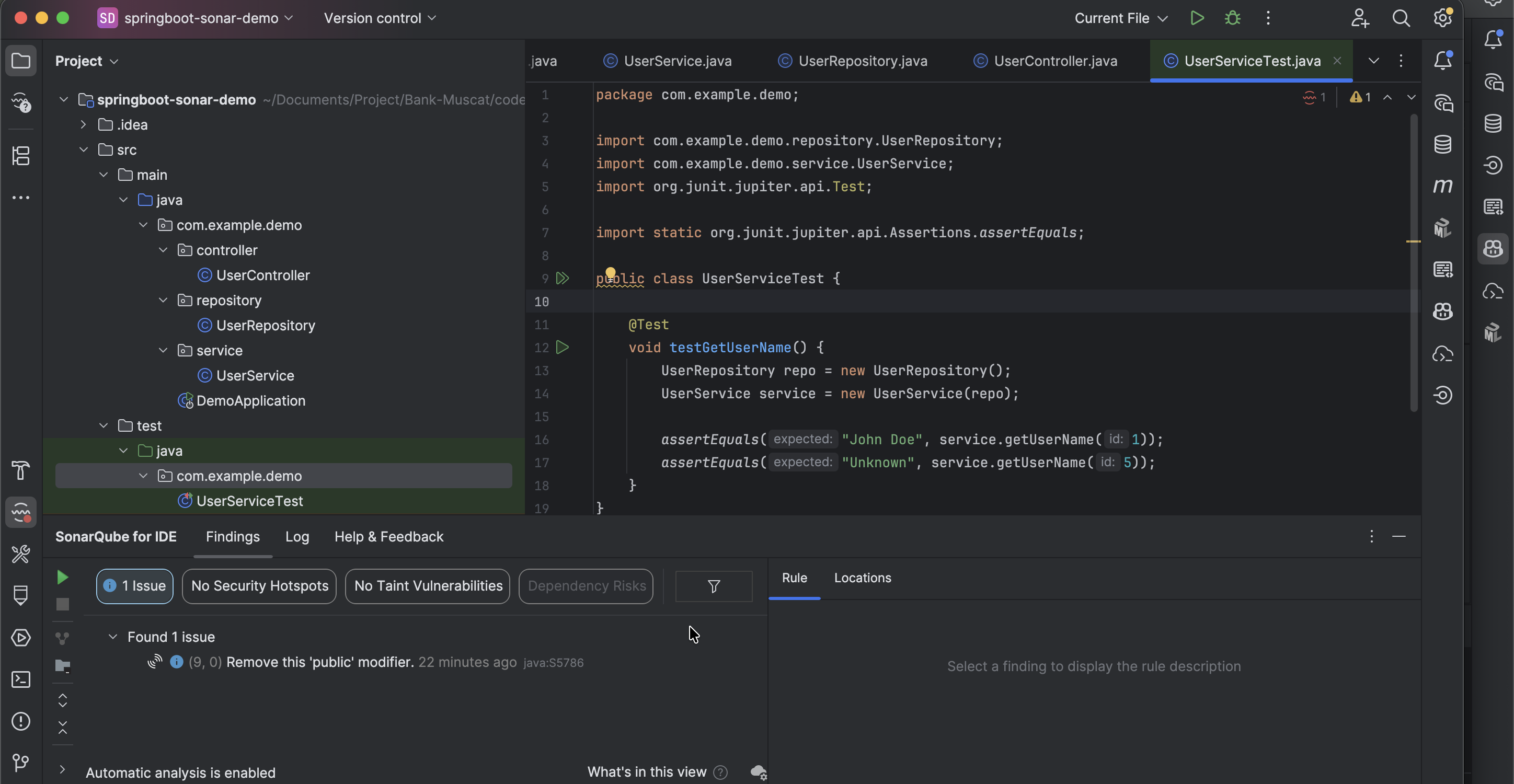
This option lets developers get **real-time analysis** inside IntelliJ using the **same rules as the SonarQube server**, ensuring consistency and preventing CI failures before they happen. This is the most common developer workflow in real teams.
#### Install SonarQube for IDE in IntelliJ
Path:
**IntelliJ → Settings → Plugins → Marketplace → “SonarQube”**
Install:
* “**SonarQube for IDE**”\
(formerly called **SonarLint**)
Restart IntelliJ afterwards.
#### Connect IntelliJ to the SonarQube Server
*(Most important step — enables rule sync)*
#### Steps:
1. IntelliJ Sidebar → **SonarQube** Tool Window
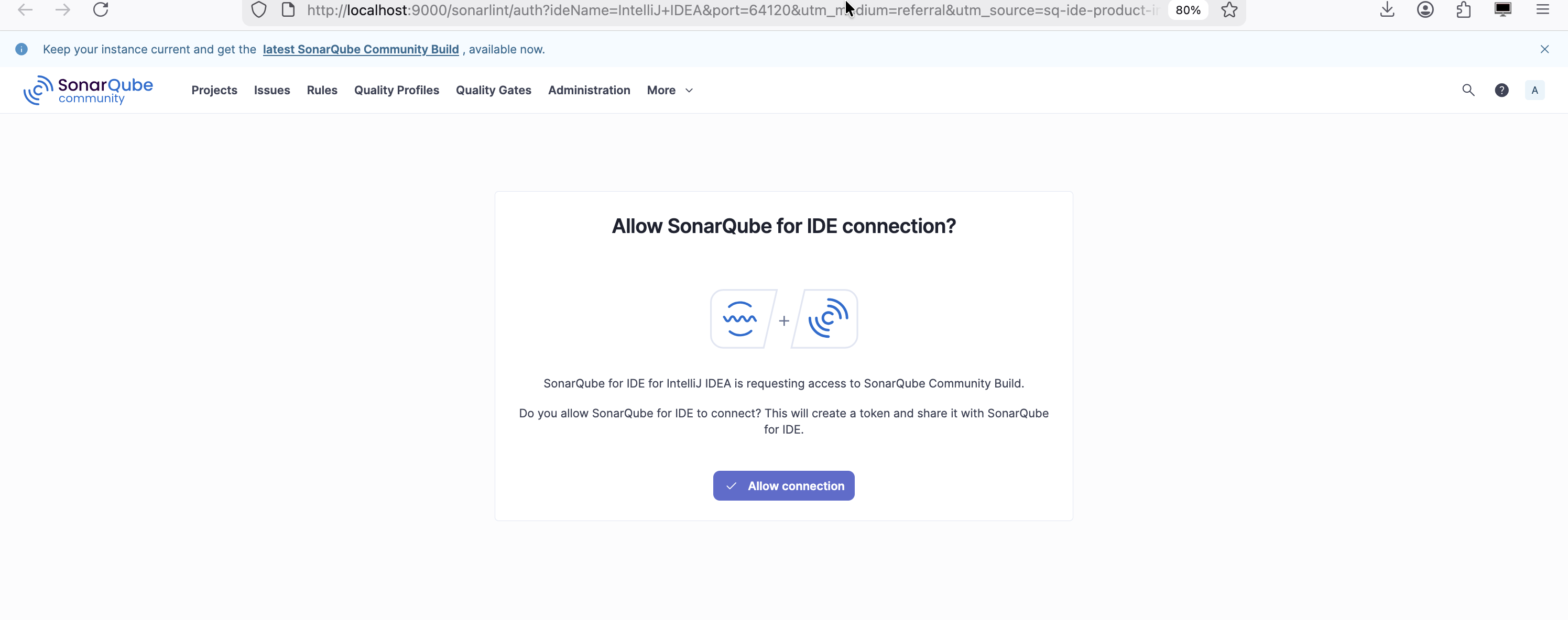
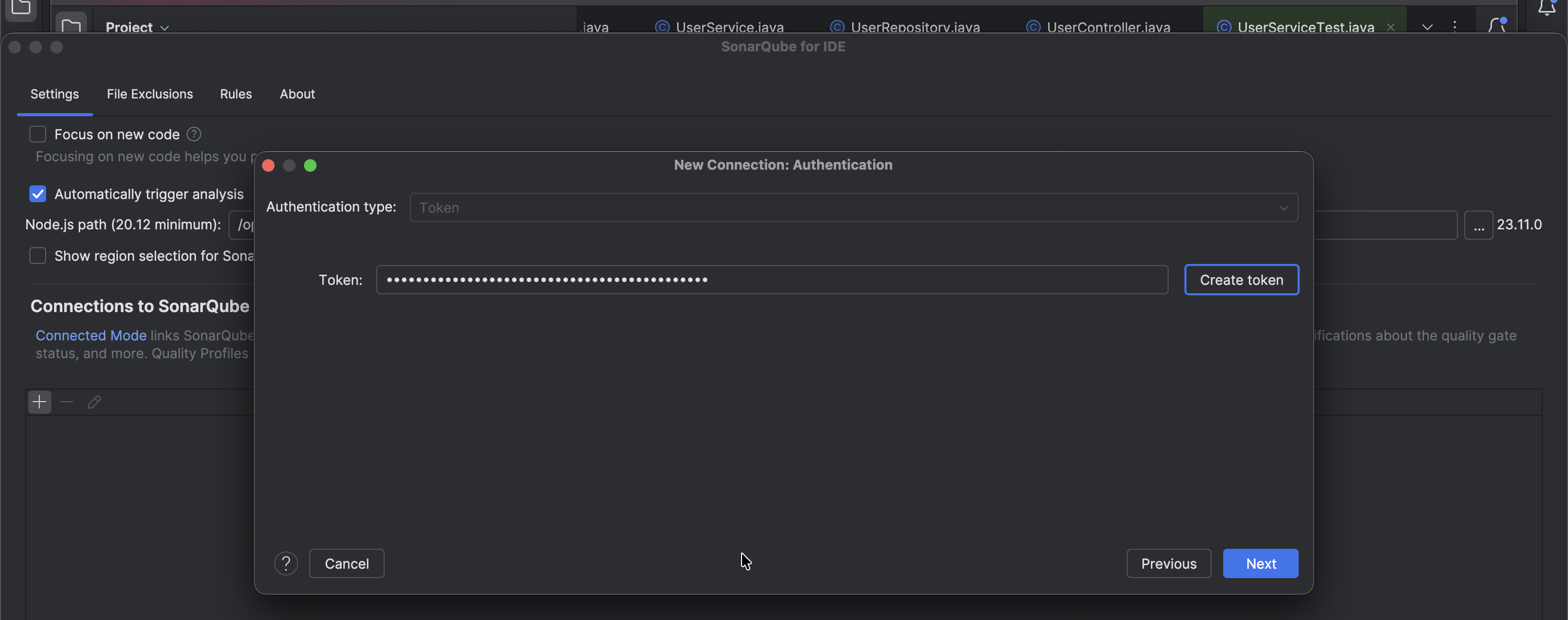
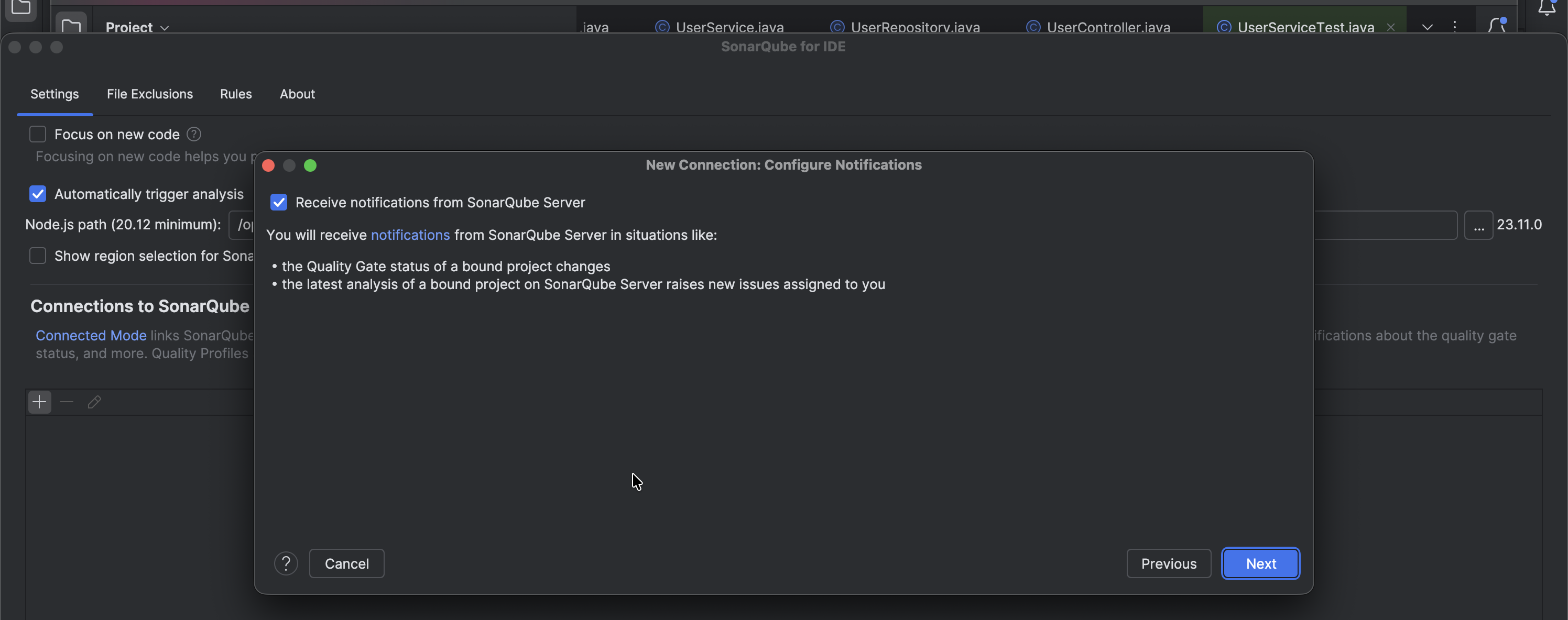
2. Click **“Bind Project to SonarQube”**
3. Add server connection
* Name: Internal SonarQube
* URL: `http://localhost:9000` (or company server)
* Token: Personal access token from SonarQube
4. Select your project key
5. Connection established
---
# Agent Instructions
This documentation is published with GitBook. GitBook is the documentation platform designed so that both humans and AI agents can read, navigate, and reason over technical content effectively. Learn more at gitbook.com.
## Querying This Documentation
If you need additional information that is not directly available in this page, you can query the documentation dynamically by asking a question.
Perform an HTTP GET request on the current page URL with the `ask` query parameter, and the optional `goal` query parameter:
```
GET https://www.pranaypourkar.co.in/the-programmers-guide/java/java-development-tools/sonarqube/scanning-a-spring-boot-project.md?ask=&goal=
```
`ask` is the immediate question: it should be specific, self-contained, and written in natural language.
`goal` is optional and describes the broader end goal you are ultimately trying to accomplish on behalf of the user. GitBook uses it to tailor the answer towards what is most useful for that goal.
The response will contain a direct answer to the question and relevant excerpts and sources from the documentation.
Use this mechanism when the answer is not explicitly present in the current page, you need clarification or additional context, or you want to retrieve related documentation sections.