> For the complete documentation index, see [llms.txt](https://www.pranaypourkar.co.in/the-programmers-guide/llms.txt). Markdown versions of documentation pages are available by appending `.md` to page URLs; this page is available as [Markdown](https://www.pranaypourkar.co.in/the-programmers-guide/spring/spring-features/spring-file-handling/apache-camel-tbu/local-docker-setup-for-sftp-server.md).
# Local Docker Setup for SFTP Server
## Prerequisites
Docker installation is completed in the system. In the below example, [colima](https://github.com/abiosoft/colima) is used on Mac System.
## Step 1: Start the colima with `colima start`
## Step 2: Configure docker in Intellij
Install the Docker plugin in Intellij -
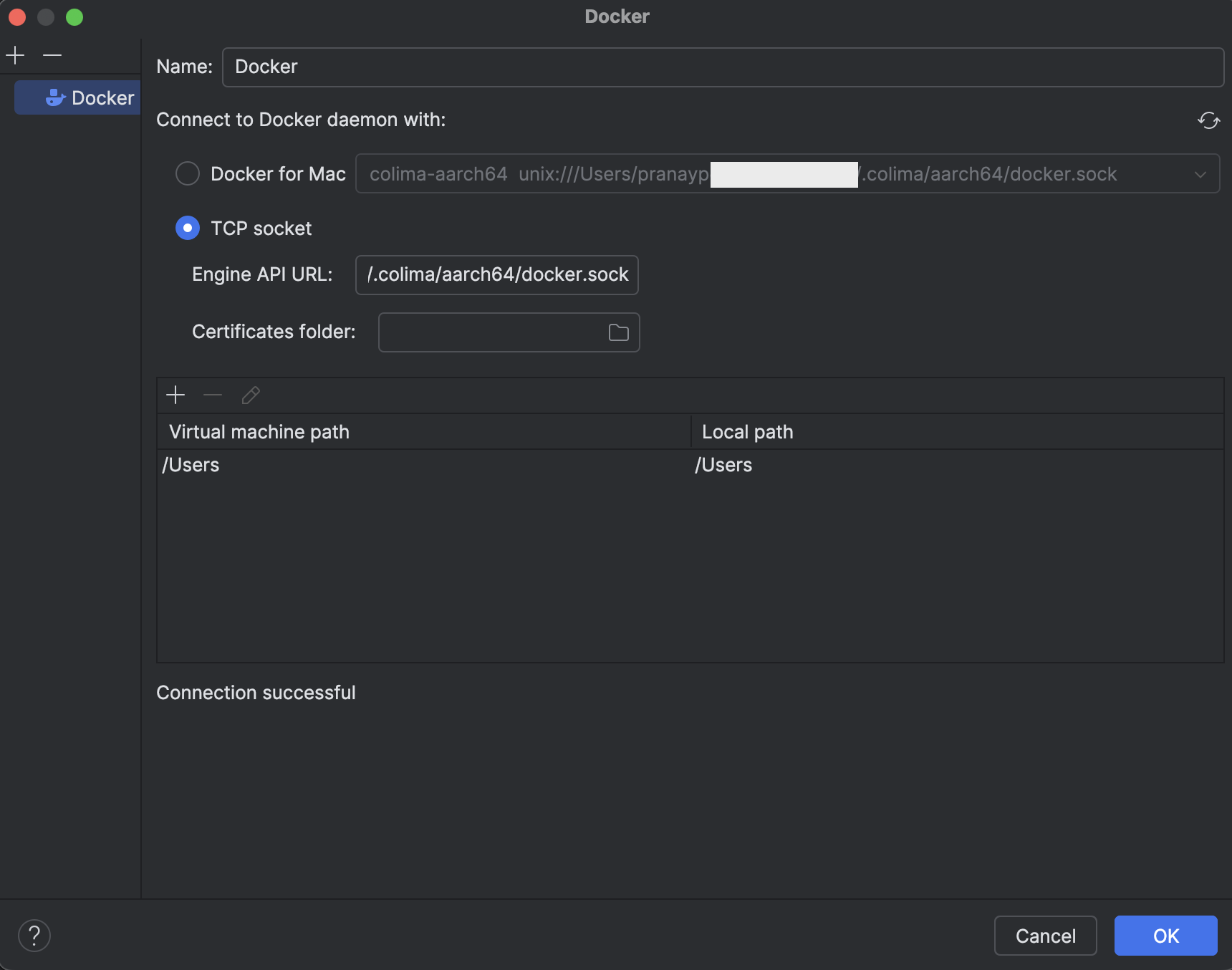
Configure the Docker plugin
To find the TCP socket - Engine API URL for colima, run `docker context ls` command. Sample value is given below.
```
unix:///Users/pranayp/.colima/aarch64/docker.sock
```
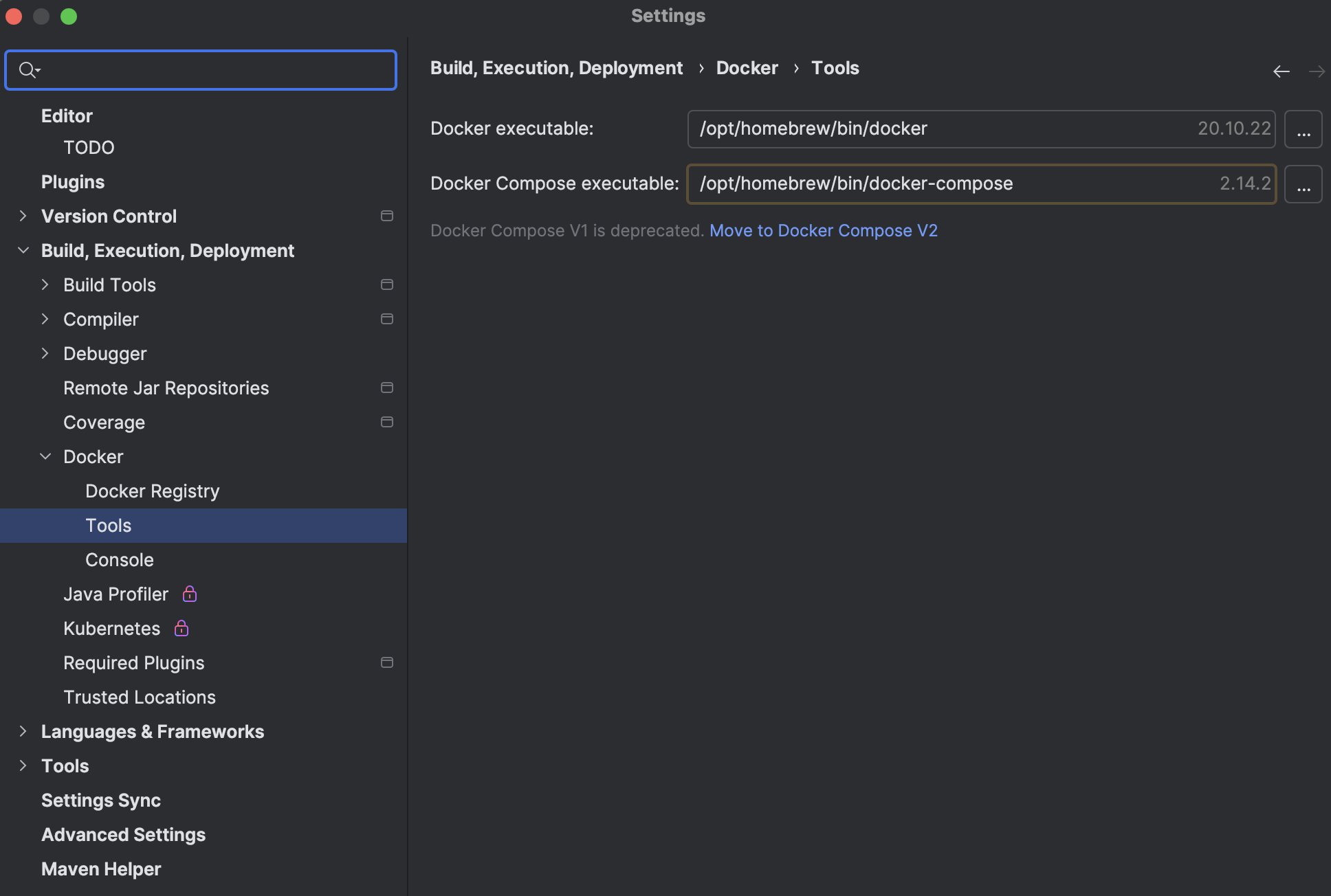
Configure the Docker executable and Compose executable
To find Docker executable and Docker Compose executable, run the below command
## Step 3: Prepare the docker-compose file
Save the below content in docker-compose file
*docker-compose.yml*
```yaml
version: "3.9"
# https://docs.docker.com/compose/compose-file/
services:
sftp-server:
container_name: sftp-server
image: antrea/sftp #https://hub.docker.com/r/antrea/sftp
platform: linux/amd64 #Change the platform as needed
ports:
- "9922:22"
volumes:
- ./sftp_test_data:/home/sftpuser/upload/sftp_test_data # Mount a local directory to the container
environment:
SFTP_USERS: "sftpuser:pass:1001:100" # Set the username, password, UID (user id), and GID (group user id)
SFTP_CHROOT: "/home/sftpuser" # Restrict user to the home directory
networks:
default:
name: default_network
```
Since, we are attaching a volume of local `sftp_test_data` folder, create a folder and add some test files there.
## Step 4: Run the docker-compose file
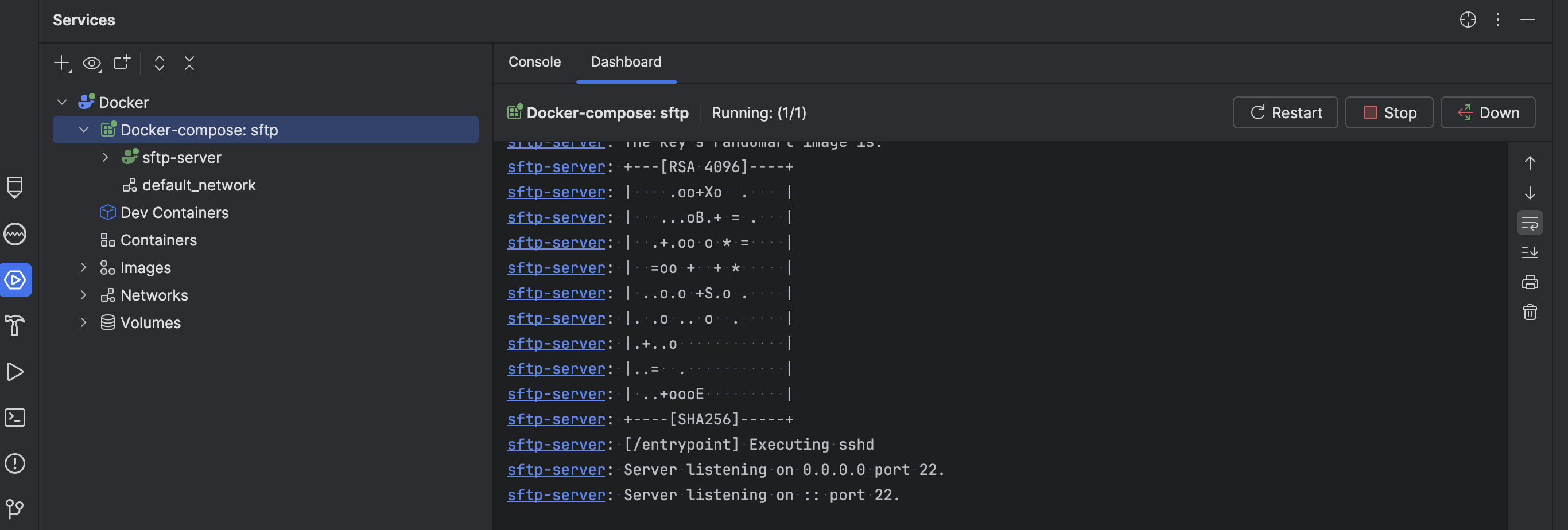
## Step 5: Connect the sftp server via any tools
Here, we will use FileZilla Client. Download and Install the FileZilla client from below url
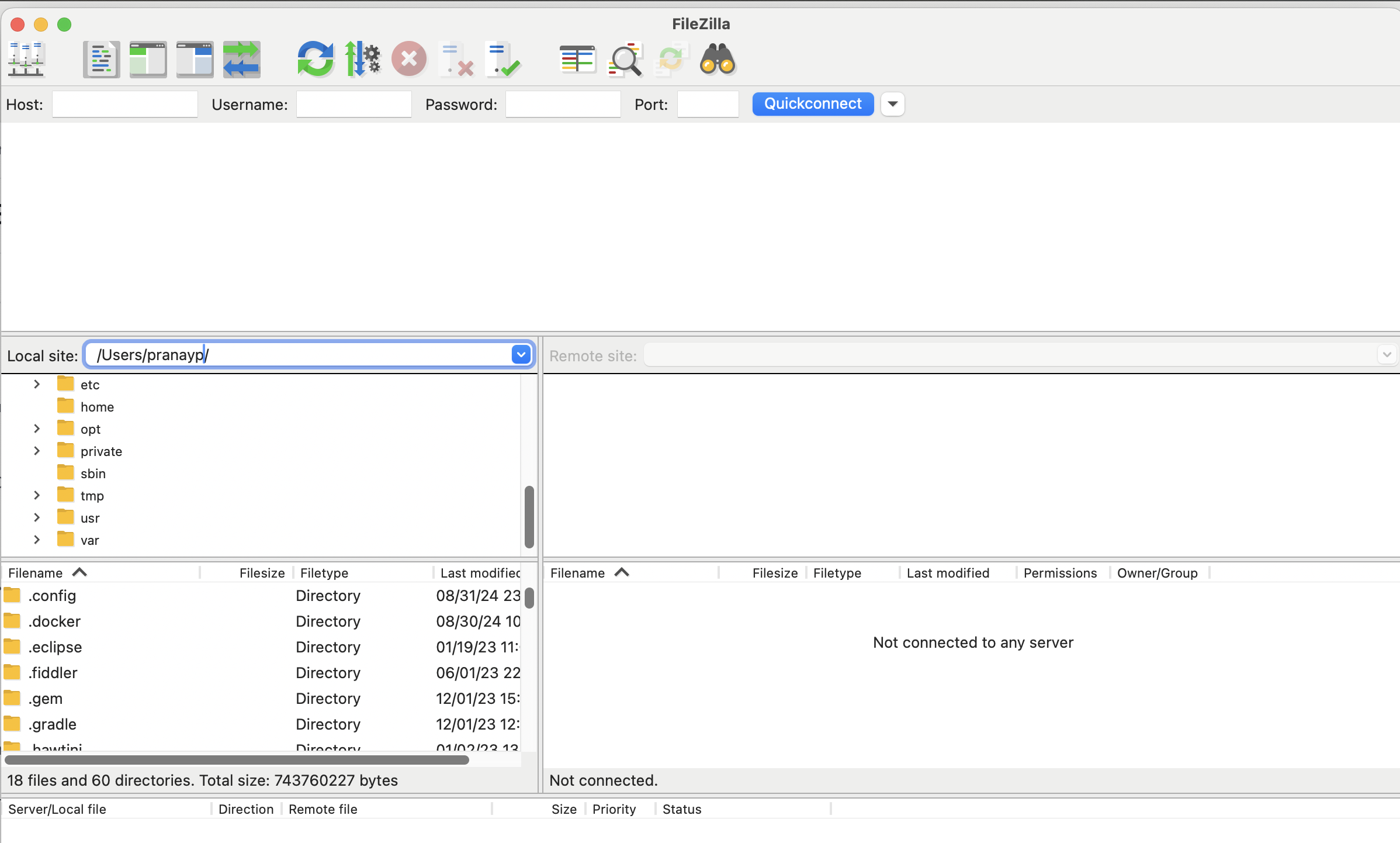
Open the FileZilla Client
Add below details as we configure in docker-compose file
```
Host: sftp://127.0.0.1
Username: sftpuser
Password: pass
Port: 9922
```
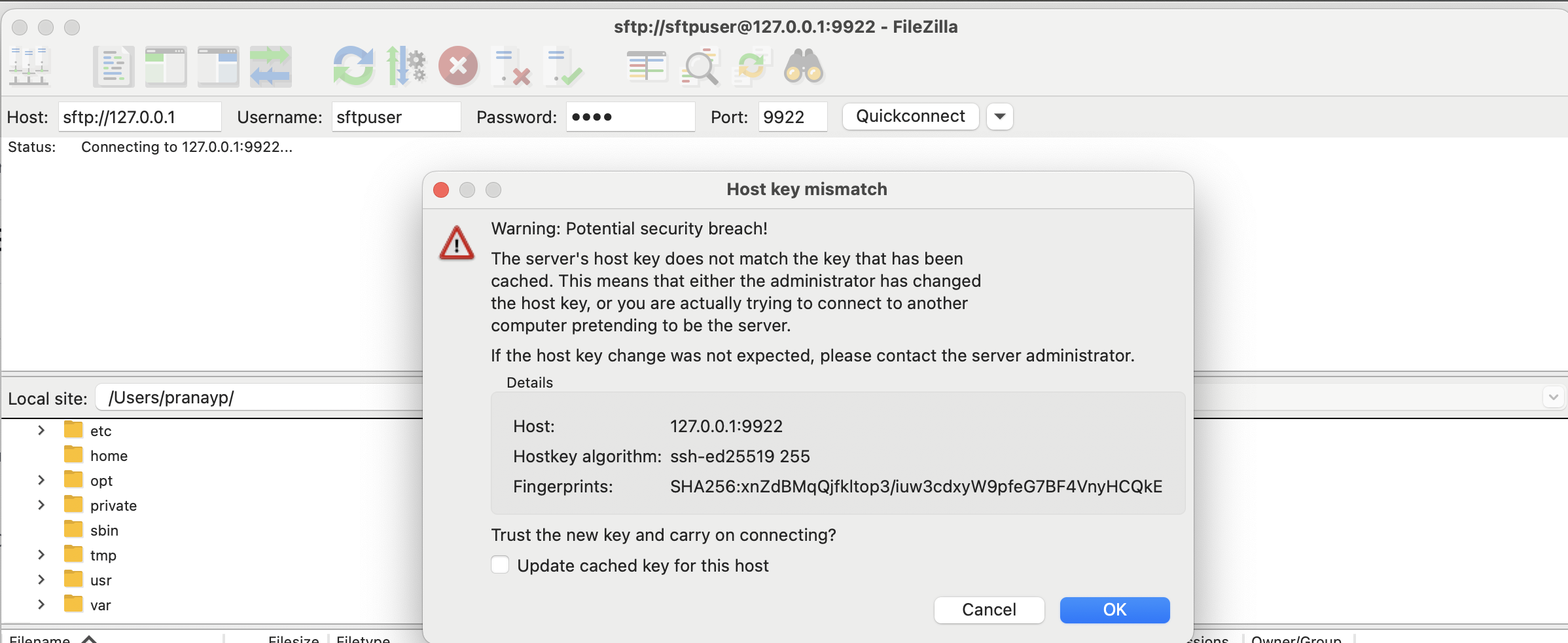
Click on Quickconnect and click on OK
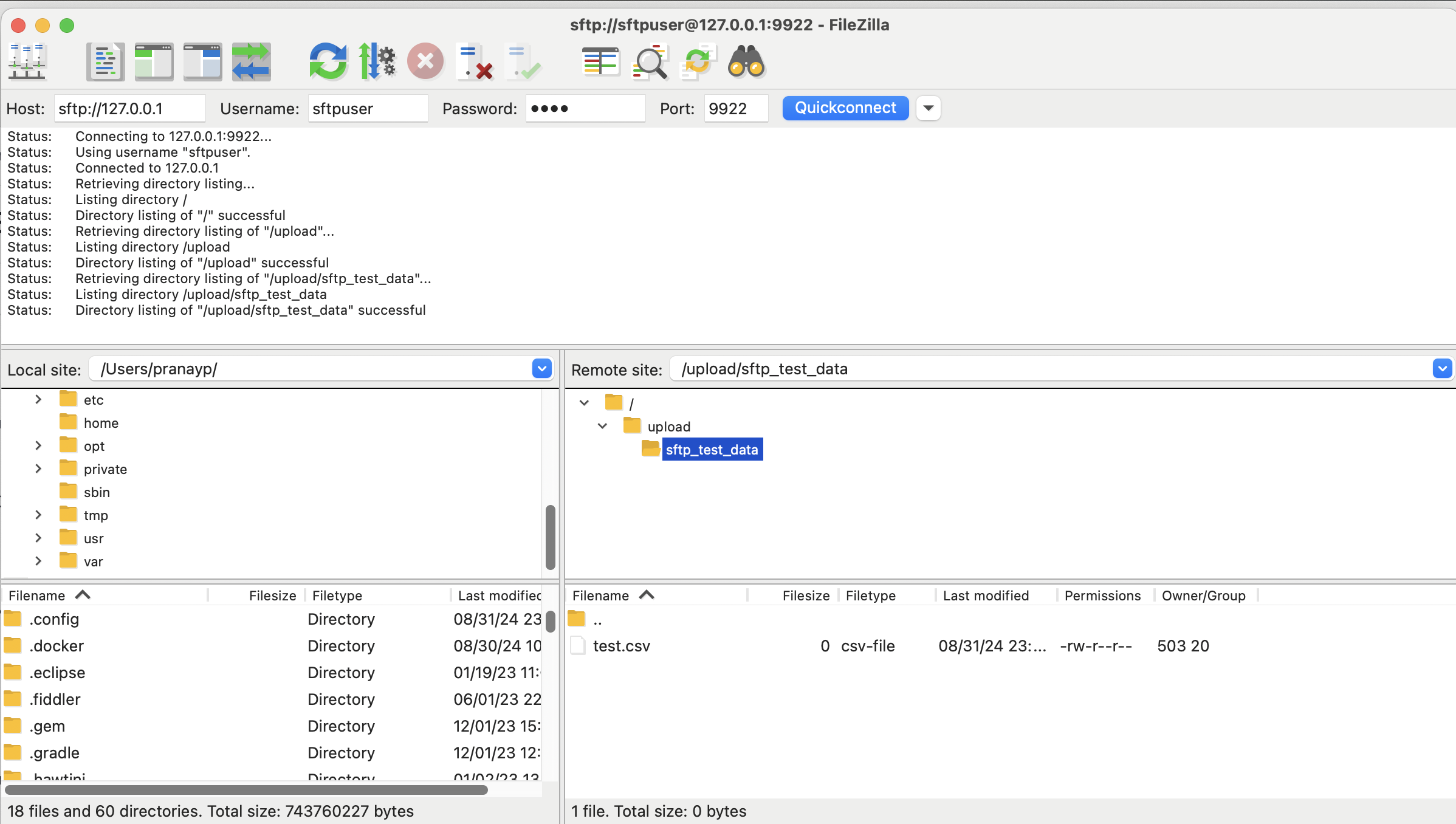
Remote site details should be visible now
---
# Agent Instructions
This documentation is published with GitBook. GitBook is the documentation platform designed so that both humans and AI agents can read, navigate, and reason over technical content effectively. Learn more at gitbook.com.
## Querying This Documentation
If you need additional information that is not directly available in this page, you can query the documentation dynamically by asking a question.
Perform an HTTP GET request on the current page URL with the `ask` query parameter, and the optional `goal` query parameter:
```
GET https://www.pranaypourkar.co.in/the-programmers-guide/spring/spring-features/spring-file-handling/apache-camel-tbu/local-docker-setup-for-sftp-server.md?ask=&goal=
```
`ask` is the immediate question: it should be specific, self-contained, and written in natural language.
`goal` is optional and describes the broader end goal you are ultimately trying to accomplish on behalf of the user. GitBook uses it to tailor the answer towards what is most useful for that goal.
The response will contain a direct answer to the question and relevant excerpts and sources from the documentation.
Use this mechanism when the answer is not explicitly present in the current page, you need clarification or additional context, or you want to retrieve related documentation sections.